# Intro to Rails
## Objectives
* Identify and describe the principles of Rails
* Use Rails generators to create an app with models and controllers.
* Use embedded Ruby in Rails templates
* Utilize the Active Record ORM to manipulate data
## Principles of Rails
1. **DRY** - keep your code DRY and use concise, consistent code.
2. **Convention over configuration** - Rails is built using sensible defaults, which speeds development and means that there is less code to maintain.
Rails uses (and for the most part, forces you to adhere to) an **MVC** architecture. We used MVC when creating Express applications.
**Model** - The model refers to the data objects that we use. It's the object oriented approach to design. The data in our database will be the most common type of object that we'll put there.
**View** - The view is the Presentation layer. It's what the user sees and interacts with, essentially the web pages. The HTML, CSS, and front-end JavaScript.
**Controller** - The controller will make decisions based on the request and then control what happens in response. It controls the interaction with our models and with our views.
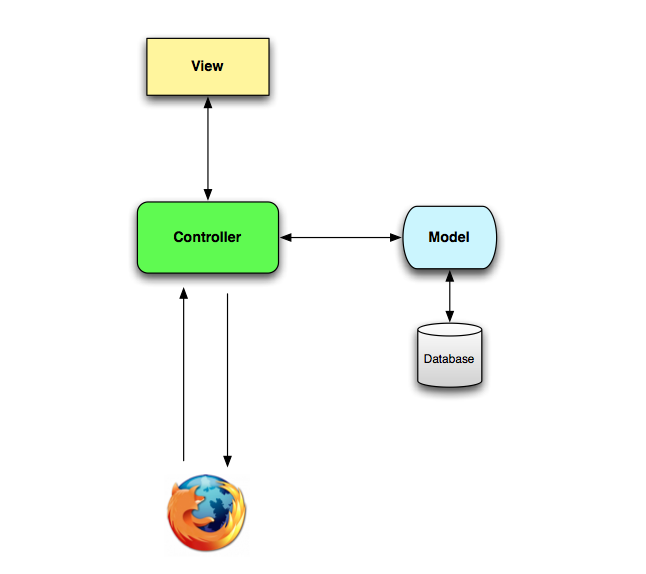
More info about Rails:
## Create a Rails App
Basic creation of an app is very simple:
```bash
rails new name_of_the_app
```
If we want to use a different database (such as PostgreSQL) we need to specify the database using the `-d` flag followed by the database. By default, Rails uses SQLite, which is unideal for web applications deployed to ephemeral file systems. We'll specify `postgresql` for our Rails apps.
```bash
rails new name_of_the_app -d postgresql
```
Hopefully this is obvious, but replace `name_of_the_app` with the name of your project. Also, running this command will automatically create a new folder, so it's unnecessary to create another folder for a Rails project.
If you've already created a folder though, you can initialize the app in a current directory by running:
```bash
rails new ./ -d postgresql
```
***SPECIAL NOTE FOR UBUNTU/DEBIAN USERS***
You might need to install libpq-dev and build-essential:
```bash
sudo apt-get install libpq-dev build-essential
```
## Rails File Structure
The main directory that we'll be working in is the `app` directory which contains our `models`, `views`, and `controllers`.

More info: [rails guides - getting started](http://guides.rubyonrails.org/getting_started.html#creating-the-blog-application)
## Bundler / GemFile
Bundler is a separate gem from Rails, and can be used outside of Rails, but Rails is going to depend on it to manage the RubyGems that our application needs.
The first thing that you need to know is that there are two files that matter to bundler:
* `GemFile` - A list of all gems your app needs to work (your dependencies).
* `GemFile.lock` - Used internally to track installed gems. NEVER EDIT THIS FILE!!
To set up an app we can run `bundle install` which will download and install any gems listed in the `GemFile`.
**Note:** After the server is running you'll need to restart it if you add any additionally gems before they will be loaded.
## Database config
The configuration for the database can be found in `(Your project name)/config/database.yml` This is where you can find the name of your database, and change database options.
***NOTE FOR UBUNTU/DEBIAN USERS***
You might need to specify the host, user and password as well. Just add the following to `config/database.yml`.
```yaml
host: localhost
user: YOUR USERNAME HERE
password: YOUR DATABASE PASSWORD HERE
```
After all this, type the following to create your database.
```bash
rake db:create
```
## Start a server
To start the server we just type
```bash
rails server
```
Or the equivalent but shorter...
```bash
rails s
```
This will start a server on port 3000.
Since we're using PostgreSQL, we'll need a database for our application. By default, the development database Rails looks for is called `name_of_the_app_development`. You can verify the name by looking in **(your project name)/config/database.yml**. Include the username and password as well, if your local database has a username and password.
You'll want to create this database using the command `rake db:create` so that Rails can find the database. This automatically creates your databases.
Here are some other `rake` commands you'll want to know about for database management.
```bash
rake db:drop # drop database
rake db:migrate # run migrations
rake db:rollback # rollback one migration
rake db:rollback STEP=n # rollback 'n' migrations
```
## Generators
Rails includes a few generators which are command line tools used to create files for us. This automates the repetitive task of creating some of the more common files we'll need to make when building a rails app. To run a generator we type `rails generate` or...
```bash
rails g
```
...for short
The two that we will be using regularly are:
* `rails g controller controller_name` - create a controller
* `rails g model model_name` - create a model
We will touch on actual usage of both of these.
More info: [Rails guides - command-line tools](http://guides.rubyonrails.org/command_line.html#rails-generate)
## Create a controller
`controllers` and the `actions` contained within are the starting point for the back-end code that will be executed when a user visits a particular page/URL.
To create a controller we use the controller generator:
```bash
rails g controller main
```
This will create a controller called "MainController" in the file `app/controllers/main_controller.rb`. To create actions we simply define methods inside of the controller like this.
```ruby
class MainController < ApplicationController
def index
end
def about
end
end
```
**Note:** You'll find that having to write `index`, `show`, `edit`, and other actions will become tedious. Instead, you can define the actions to the generator and Rails will make them for you.
```bash
rails g controller main index about
```
The controller generator also creates views, a helpers file, and coffee/scss files. We won't go too deep into these (with the exception of SASS), but you're welcome to use helpers and CoffeeScript if you wish.
## Routing
Routing is used to route URLs to specific controllers/actions. So when a user types in `/about` we want it to go to the about action of the main controller. To specify this we use the `#` symbol so for our about action it'd be `main#about`.
Routes consist of an HTTP verb and a path. `GET /about` is not the same as `POST /about`
Routes are contained in the `config/routes.rb` file.
To list all routes you can run the following command:
```bash
rake routes
```
**config/routes.rb**
```ruby
get 'main/index'
get 'main/about'
```
While these routes are fine, we're going to change them around a bit.
```ruby
root 'main#index'
get 'about' => 'main#about'
```
* **root** - A special route known as the "root route". Every app only has one root route which is used for the home page of the site, AKA what will display when we go to: `http://localhost:3000`
* **get** - get defines a new `GET` route. Any time you go to a url by typing it into the URL bar it is accessing a `GET` route. Defining routes is simply the url they will type followed by a hash-rocket (`=>`) that points at the controller#action you want it to execute (`main#about`).
### More Routing Examples
```
# a single route to a single controller#action
get 'contact' => 'main#contact'
# same as above, only different syntax
get 'contact', to: 'main#contact'
# similar to above, only with a URL parameter
get 'users/:id', to: 'users#show'
# similar to above, only changing the name of the path helper
get 'users/:id', to: 'users#show', as: 'profile'
```
### Resource Routing
Ruby on Rails provides a convenient way to generate RESTful CRUD routes for a controller. Imagine you want to configure routes to create, read, update and delete photos. You would have to write out all of this:
```
get 'photos' => 'photos#index'
get 'photos/new' => 'photos#new'
post 'photos' => 'photos#create'
get 'photos/:id' => 'photos#show'
get 'photos/:id/edit' => 'photos#edit'
put 'photos/:id' => 'photos#update'
delete 'photos/:id' => 'photos#destroy'
```
Notice that this route configuration is exactly the sort of routes we've built up in our previous servers. This route configuration exactly follows the suggested route configuration for RESTful routing. It's a truly conventional way to set up routing.
Remember Ruby on Rails' principles? One of them is, "convention over configuration." Whenever there's something that's common (like configuring RESTful routing) Ruby on Rails likes to provide shortcuts to speed up the development process, and shortcuts save us from making stupid errors when we're configuring things along the way.
Ruby on Rails offers a way to declare `resources` for a controller. This automatically creates full RESTful routing for the controller. It will automatically create each of the seven routes manually configured in the example above.
Here's some different ways you can quickly declare resources for a controller:
```
# resources routing, used to quickly declare RESTful routes for a resource
resources :photos
# resource routing, using `only` to define the specific RESTful routes
resources :photos, only: [:index, :show]
# resource routing, using `except` to omit RESTful routes
resources :photos, except: [:destroy]
# nested routes
resources: :posts do
resources :comments
end
```
Note that there are more examples for customizing routes in the `config/routes.rb` file, as well as the [Rails Routing documentation](http://guides.rubyonrails.org/routing.html). Note that there is a "Rails way" for routing that makes your life easier.
## Views
By default, actions in rails will render a view named `ACTION_NAME.html.erb` in the `views/CONTROLLER_NAME` directory.
For example, the actions we defined above will load `views/main/index.html.erb` and `views/main/about.html.erb` respectively.
However, we can manually render a view by using the `render` method, if needed. Example:
```ruby
class MainController < ApplicationController
def about
render :about
end
end
```
For rendering text, JSON, other templates, etc., you can take a look at the [Rails Documentation on creating responses](http://guides.rubyonrails.org/layouts_and_rendering.html#creating-responses). Trust us, it's good.
## ERb
Rails uses a templating engine called ERb (Embedded Ruby). It allows us to mix HTML and ruby code to create dynamic templates. It supports the majority of the major components of the ruby language.
To designate ruby code we use "magic tags" `<% #ruby code goes here %>`. Any code between those tags will be executed on the server before the HTML content is served to the user. If you want the result of the code to output you add a `=` inside the tag like this: `<%= 5+5 %>` would insert the number "10" into the HTML.
**Example**
```
<% (1..10).each do |i| %>
<%= i %>
<% end %>
```
Notice only the middle line of code has an equal sign (`=`). This is because this is the only line that needs to putput anything. The each loop and end tag are just used for control flow.
This could would output the following HTML:
```markup
1
2
3
4
5
6
7
8
9
10
```
This HTML is then sent to the user's web browser to be rendered.
## Passing data from controllers to views
**Inside a controller action**
```ruby
def index
@taco = "Hello instance taco!"
@array = [1,2,3]
end
```
**Inside a view**
```
<%= @taco %>
<%= @array.inspect %>
<% @array.each do |item| %>
<%= @array %>
<% end %>
```
Note that we can pass data from a controller action to a view by defining the variables as instance variables. This is required because instance variables only exist in the action. By declaring them as instance variables, the variables are passed to the view.
More info here: [rails guides layouts and rendering](http://guides.rubyonrails.org/layouts_and_rendering.html)
## Models / ORM / Active Record
Rails provides a tool called Active Record, which is an ORM (Object Relational Mapper) that maps database tables to object-oriented models.
Models are used for interacting with the database. Essentially each model represents a database table.
**MODELS ARE ALWAYS SINGULAR!!!** If you have a collection of *photos*, the model name would be *photo*. This is very important. If you get it wrong, things will break.
**Example**
To create a Tweet model with the following attributes:
* username - string (varchar)
* content - text
We simply run:
```
rails g model tweet username:string content:text
```
This will create a migration file in the `db/migrations` directory and a model in the `app/models` directory.
more info: [Rails Guide - Active Record](http://guides.rubyonrails.org/active_record_basics.html)
## Migrations
Migrations are used to create the schema of our database. When we generate a model it creates a migration file that will automatically create the correct database table.
To run all pending migrations just type `rake db:migrate` and the new table will be created.
Migrations can also be used to make other database modifications. (eg adding, removing, renaming columns)
More info: [Rails guides - migrations](http://guides.rubyonrails.org/active_record_migrations.html)
## Interacting with data
We can directly interact with the data in our database using our model. This is typically done in the controller action.
[Rails Guides - Active Record CRUD](http://guides.rubyonrails.org/active_record_basics.html#crud-reading-and-writing-data)
## Interactive Console
The rails interactive console can be loaded to test code and interact with our rails app directly. To start it you simply run `rails console` or `rails c` from the command line and it loads an interactive terminal `irb` with the rails app initialized. This is generally a good idea because you can test your modules using Active Record.
**Basic Examples**
```ruby
Tweet.all # lists all tweets
Tweet.create(content: 'This is my first tweet', username: 'Brian')
# alternative create syntax, using a create block
Tweet.create do |t|
t.content = 'Rails make development so fast!'
t.username = 'EveryStartup'
end
Tweet.all
Tweet.first
Tweet.last
Tweet.where(username: 'Brian')
t = Tweet.find(1)
t.username = 'Josh'
t.save
t = Tweet.new
t.username = 'Daniel'
t.content = 'Hello this is a tweet too'
t.save
Tweet.where(username: ['Daniel', 'Josh'])
Tweet.count
Tweet.all
```
## Instant REST
A reminder from above: Rails conventions allow us to create applications quickly. As an example, we're going to create a RESTful app using the Tweet model. A very useful way to create these routes is by using `resources`.
**config/routes.rb**
```ruby
resources :tweets
```
Using `resources :tweets` will make a set of RESTful routes with a base URL of `tweets`. Run `rake routes` to see these routes.
Note that the routes will also include default controller actions. While we can override these, we'll be fighting against the Rails opinions if we do. So let's make a controller to reflect these actions.
```bash
rails g controller tweets index new edit show
```
Note that the model is singular, the controllers/routes are plural. **VERY IMPORTANT**
In **controllers/tweets\_controller.rb**
```ruby
class TweetsController < ApplicationController
def index
@tweets = Tweet.all
end
def create
Tweet.create(tweet_params)
redirect_to tweets_path
end
def new
@tweet = Tweet.new
end
def edit
@tweet = Tweet.find(params[:id])
end
def show
@tweet = Tweet.find(params[:id])
# render json: params
end
def update
t = Tweet.find(params[:id])
t.update(tweet_params)
redirect_to tweets_path
end
def destroy
Tweet.find(params[:id]).delete
redirect_to tweets_path
end
private
# this is used to prevent mass-assignment of parameters into ActiveRecord models
def tweet_params
params.require(:tweet).permit(:content, :username)
end
end
```
### Handy Methods for Views
Rails provides a lot of helper methods, most handily `link_to` and `form_for`, as well as methods that produce the links. Note that we can override the names of these helpers by using `as:` when creating routes.
```ruby
# link helpers
tweets_path
tweet_path(tweet)
tweet
new_tweet_path
edit_tweet_path(tweet)
```
* [Rails Routing Path/URL Helpers](http://guides.rubyonrails.org/routing.html#path-and-url-helpers)
```
<%= link_to "Edit Tweet", edit_tweet_path(tweet), class: 'btn btn-default' %>
<%= form_for @tweet do |t| %>
<%= t.label :content %>
<%= t.text_area :content %>
<%= t.label :username %>
<%= t.text_field :username %>
<%= t.submit %>
<% end %>
# An easier helper is bootstrap_form, which can be installed by including the following line in your Gemfile:
# gem 'bootstrap_form'
# then run 'bundle install' and include the Bootstrap CDN links in layouts/application.html.erb
<%= bootstrap_form_for @tweet do |t| %>
<%= t.text_area :content %>
<%= t.text_field :username %>
<%= t.primary %>
<% end %>
```
* [Rails Form Helpers](http://guides.rubyonrails.org/form_helpers.html)
* [Rails Form Methods](http://guides.rubyonrails.org/form_helpers.html#how-do-forms-with-patch-put-or-delete-methods-work-questionmark)
Note that if we create a form helper on an edit page, the helper automatically makes assumptions about the form. One of these assumptions is to provide a hidden `_method` field that describes the method that should be used on submission. This is the Rails workaround to sending `PUT` and `DELETE` requests!
Note that we can add a `method` attribute to links as well, using a URL helper. Here's an example.
```
<%= link_to "Delete Tweet", tweet_path(tweet), method: :delete, class: 'btn btn-danger' %>
```
Note that this is made possible by a piece of JavaScript called `rails.js` running on the page.
## Additional Resoures
* [Getting Started](http://guides.rubyonrails.org/getting_started.html)
* [Creating Migrations](http://edgeguides.rubyonrails.org/active_record_migrations.html)
* [Rails Routing](http://guides.rubyonrails.org/routing.html)
* [Form Helpers](http://guides.rubyonrails.org/form_helpers.html)
* [Rails API guide](http://api.rubyonrails.org/)